Good news for Progressive Web Apps: Google seems to be encouraging their wider adoption by opening its store to PWAs. What does that involve, and what should we expect? Grab a coffee — we’ll tell you everything!
Worth knowing: PWAs offer numerous advantages that serve e-commerce.
Progressive Web App: a definition of the hybrid web application
In a previous article, we explained why you should use Progressive Web Apps and how they work. Now you should know that this technology is available from Google’s store!
As a reminder, a Progressive Web App, or PWA, is in a sense a “mix” between a native mobile application and a website. Admittedly that description is very rough, and in reality it is more complicated than that. What you need to understand above all is that the philosophy of these technologies rests on two things: smoothness and accessibility. Indeed, these progressive applications are accessible from any device, whether mobile, tablet or even desktop. Why? Because in reality PWAs are developed using the HTML, CSS and JavaScript languages! In the end, the so-called “application” is in fact a web page, opened by a web client (your favourite browser) in a dedicated container. It is even possible to put this container into full screen — which is very much the idea of an application.
OK, PWAs are cool, but what advantages do they bring compared with a native application?
They are faster to use and cheaper to set up! Indeed, with these progressive applications, you no longer need to develop a solution adapted to each device (one iOS app, one Android app, one Windows Phone app — ah, well, no). Mobile devices come with web browsers, and these web clients make it possible to access a single website common to all devices.
So why not install a “shortcut” on your device that lets you connect directly to the web address of the service in question? That is exactly what PWAs make possible, and it provides access to a service from any internet browser. It avoids problems with applications available exclusively on one single store. Because yes, it has to be said that it is particularly frustrating for a user to see, for example, that the official app dedicated to their Thermomix is only available on iOS and not on Android.
Service Worker, the PWA’s speed argument
Service Worker is the name of the feature that allows PWAs to be what they are. Thanks to a storage cache, it makes it possible to run an application in the background. Yes, just like a native application! The advantage is that data can be loaded asynchronously. That makes it possible to reduce loading time when the application starts and even to use it in “offline” mode. That’s not all — it is also possible to handle the sending of push notifications.
PWAs that can be integrated into the Google Play Store?
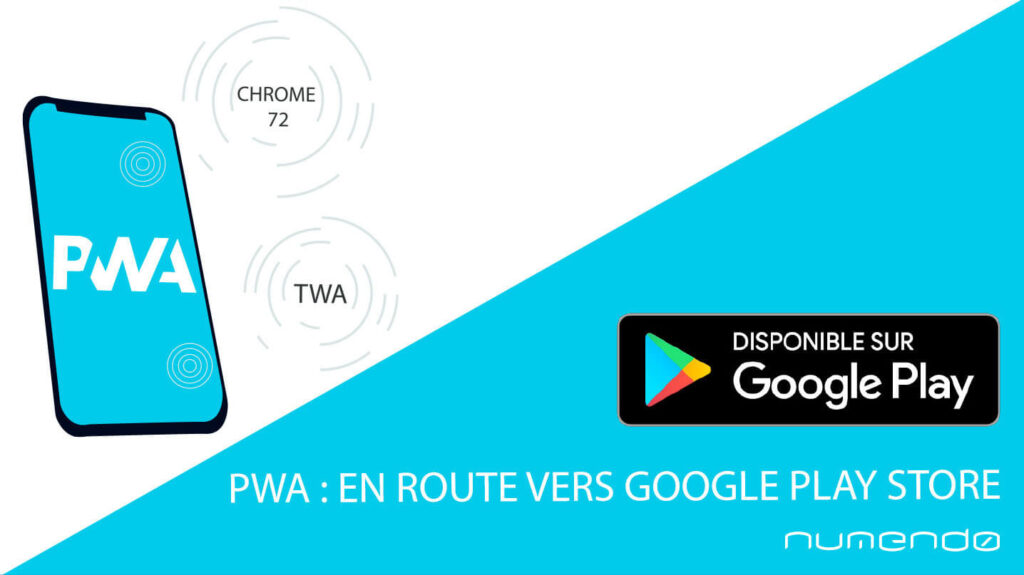
With the new Chrome 72 update, it is now possible to offer PWAs directly from Google’s Android store. However, according to our source, publishing your PWA in the store is not as easy as it looks. Publication has to be done using a Java API (Trusted Web Activity) that is only in its very early days. As PWAs become more widespread, more suitable tools should normally be released. Nonetheless, a more hands-on method is possible in order to create a PWA launcher.
Why publish a PWA in the store?
Before looking at how to submit your PWA (or PWAs) to the Google Play Store, it seems sensible to list the advantages this can bring. Because unlike other native applications, PWAs can also be downloaded from the web and can even be indexed through the use of metadata. Even so, implementing them in a store makes it possible, among other things, to:
- Offer visibility beyond the web (of course)
- Monetise the application — still a limited use case (difficulty monetising additional content)
- Offer “native” content to download, which will be combined by your PWA’s Service Worker
- Nest several PWAs within a single launcher that takes care of directing the various services to their respective URLs
Trusted Web Activity and how it differs from Cordova
TWA (Trusted Web Activity, the integration API) is said to be a special mode of Chrome Custom Tabs, a native solution that, since Chrome 45, makes it possible to open a web browser window directly within the application, in the manner of a WebView. Also, to deploy a native application you were used to submitting an APK (Android Package) using Cordova. In the case of a native application, this APK has to include all the necessary resources — because in order to work, the native application uses its own “sandbox”, made up of its cache, its cookies and so on. With PWAs, it is different! Thanks to the Service Worker, the PWA links to your browser’s cache. The application is therefore, in a sense, lighter to download. Only native content needs to be submitted to the store. A second advantage of this is that if a user logs in on your website and then downloads the PWA, they will not need to log in a second time. As the PWA is linked to the browser cache, the user’s browsing information will be carried over. It is still worth noting Maximiliano’s remark (our source): even though it is possible to view a PWA without an internet connection, an internet connection will nonetheless be required for the application’s first load, otherwise you will see a blank page appear. Apparently, for the time being the PWA’s cache is not synchronised at installation time. Furthermore, when a user uninstalls a PWA via the native shortcut manager, the browser cache is not cleared for all that. That means the PWA’s data remains in the cache, and that it is still possible to send notifications to the user via the browser, even though they have uninstalled their app.
Creating a PWA package with TWA
To create a PWA package using TWA you need to use an IDE (integrated development environment); in our case we have opted for Android Studio, which contains Java and Kotlin libraries for Android. To date, there are only “experimental” methods for creating a PWA package using TWA. The methods used as examples by Maximiliano are those from Chrome’s GitHub repository.
Good news: in our case, you will not need to write any Java, nor even any Kotlin! You simply do it in JavaScript, create an Android Studio project and insert your metadata into an AndroidManifest.xml file derived from your Web App Manifest — and that’s it, dinner is served! What is the manifest file? It is a description that you have to insert into your native application, in our case the PWA’s launcher. It makes it possible to provide metadata such as the name of the author, the application’s creator, the publication date and so on. It is one of the only things that can be considered native in this PWA application.
Validating your web service’s URL
PWAs only work if you make your domain name match your application — this is what is known as the Digital Asset Link. It makes it possible to establish a relationship of trust between the host and the APK, which serves to prove that you really are the owner of the application you are submitting to the store. To do this, you should create a domain name dedicated to your PWA. Why? Because if, for example, you enter the domain name cocacola.fr as the referrer while your PWA is perhaps in a deeper folder (cocacola.fr/pwa), it will load the entire site into the cache. That is pointless, it wastes time and it consumes the user’s data because, once again, the PWA will synchronise its content in the background.
Publishing your PWA
To publish your PWA, you will need to follow the Google Play Store’s rules and also create a developer publishing account, paying the $25 entry fee.
Updating the application
As mentioned earlier, Service Worker allows you to link your PWA to your browser’s cache. That makes it possible to carry out updates in the background, in a way that is fairly transparent for the user.
This is a boon for the user experience, because it means you will no longer receive weekly update notifications for a simple minor revision. That means you will no longer be obliged to download a complete application just to change a small detail of your app.
On the other hand, in the case of a more significant update — by which we mean that you are modifying native elements (metadata, screens, etc.) — you will have to submit a new version of your complete package.
One point worth raising is the fact that there is no tool allowing the PWA to communicate with its native wrapper. Why is that a problem? In the event that you want to create paid additional content. The user will be obliged to pay via the website by card or another payment method, but they will not be able to use their Android account linked to the application — because it is indeed the native wrapper that is linked to the Play Store, not the PWA.
Debugging
A slight snag: it would appear that at present there is still no way to debug the application remotely. A linking problem between Service Worker and TWA is said to be the reason for this little hiccup.
A bit of favouritism towards Chrome
Unsurprisingly for Google, PWAs installed from the store will tend to favour Google Chrome — even if Chrome is not your default browser and you have another, more up-to-date one.
You now know a little more about the Google Play Store’s beta PWA publishing system. Are you ready to take the plunge? Which front-end framework will you use to develop your PWA? If you are still hesitating, we have written an article to help you choose. 😉